Service Policy
Here, you can process post new business transactions such as Renewal and Endorsement.
Renewal
For policy renewal, follow these steps:
-
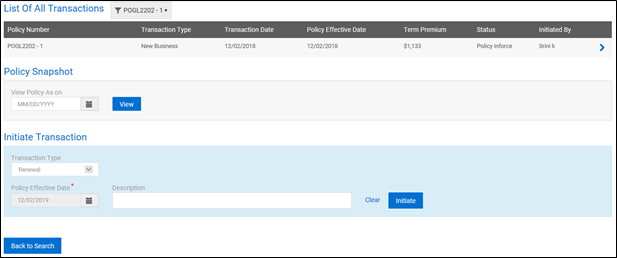
Once the policy is selected as mentioned in Search, select Renewal from Initiate Transaction on the Policy Activity page and provide the 'Renewal Effective Date' and 'Description'.
-
The system creates a new quote with the same details as the prior policy.
-
You can add or edit the policy details.
-
The system navigates you to the Pricing Screen, and you can make payment.
-
Once the payment is done, the policy will be recorded as the second term, which will display under policies for the customer.
Endorsement
Using Endorse Policy, you can add, delete, or modify any information such as buildings, locations, risks, coverages, forms on the existing policies of customers on their request.
To process endorsement on a policy, follow these steps:
-
Once the policy is selected as mentioned in Search, select Endorsement from Initiate Transaction in the Policy Activity page and provide the ‘Endorsement Effective Date’ and ‘Reason for Endorsement’.
-
You will be able to make changes to the existing policy.
-
If you are trying to create an endorsement on a policy which has pending endorsements, the screen displays the following message.

Note: You can proceed with the pending endorsement or cancel to go back.
-
If you click View Details, the list of pending endorsements will be displayed.
Note: You can also continue with any of the pending endorsements through Customer Accounts or Policies from the menu on the header.
-
To continue with any of the pending endorsements, click on the
 icon displayed at the pending endorsement and click Proceed to quote.
 -
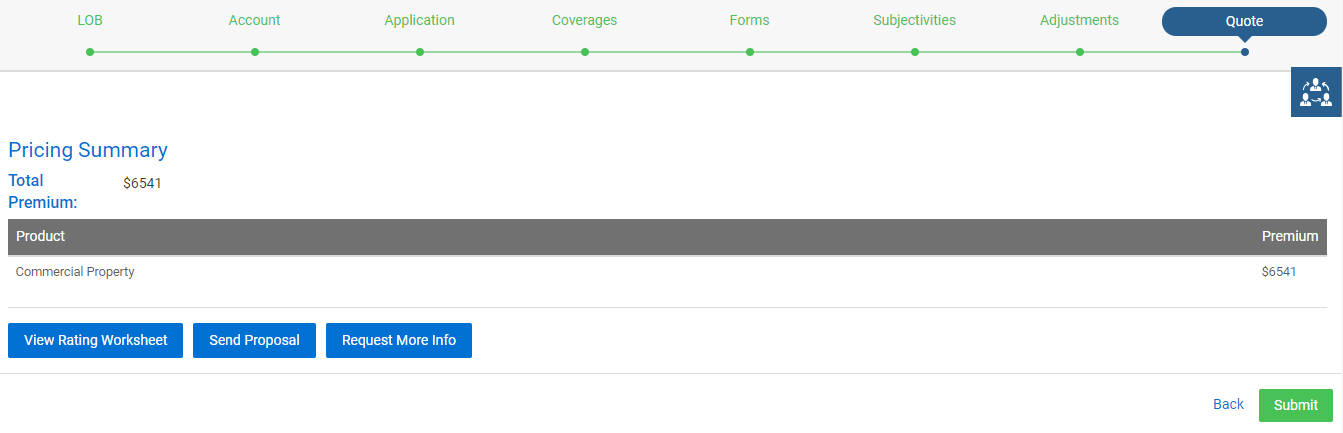
In the endorsement quote, you can make the desired changes and proceed to the Pricing Summary screen, where you can view the Prior term Premium, Amended Premium, and Net Change.
-
You may proceed to either pay the net change or receive the refund by clicking Submit.
Note: If the policy expires, the system does not allow you to perform endorsements/cancellations on the policy.
Cancellation
To process cancellation on a policy, follow these steps:
-
Select Cancellation from Initiate Transaction in the Policy Activity page and provide the type of Cancellation (Flat-Rate or Short-Rate or Pro-Rate), 'Cancellation Effective Date' and select the 'Cancellation Reason'.
-
The system displays cancellation summary screen.
-
You can view the Term Premium and Refund Premium.
-
Once the Cancellation is processed, the policy will be cancelled and the status of the Policy will be updated as Policy Cancelled.
-
The updates will reflect in the Policies tab under the Customer Information screen.
Reinstatement
You can reinstate cancelled policies within a specified period from the policy cancellation date. The carrier can define this time period to perform Reinstatement.
To process reinstatement on a policy, follow these steps:
-
Select Reinstatement from Initiate Transaction in the Policy Activity page and provide the 'Reinstatement Reason'.
-
By default, 'Reinstatement Effective Date' will be the Cancellation Date, and it will be in view mode.
-
The system displays the reinstatement summary screen.
-
You can view the Prior Premium, Cancellation Refund Amount, and Net Premium details.
-
Once the Reinstatement is processed, the policy will be reinstated and the status of the Policy will be updated.
-
The updates will reflect in the Policies tab under the Customer Information screen.
Reissue
You can make non-premium bearing changes to a policy. A new quote will be created and a new policy issued with the same policy number.
To process reissue on a policy, follow these steps:
-
Select Reissue from Initiate Transaction in the Policy Activity page, and provide the Reason for Reissue.
-
You will be able to make changes to the existing policy.
-
Once all the changes are made, you can bind the application through Submit at the Pricing Info screen.
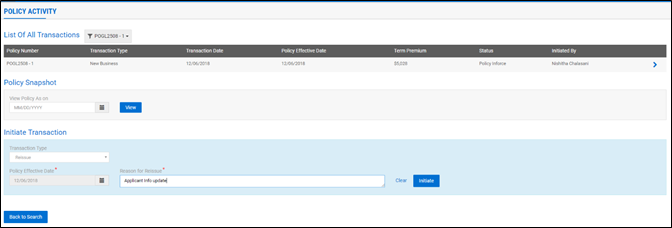
Note: The new quote number will be reflected in the Recent Quotes tab.
Rewrite
You can change the complete structure of a policy through this transaction. The old policy gets cancelled and a new quote number and new policy number will be generated.
To process rewrite on a policy, follow these steps:
-
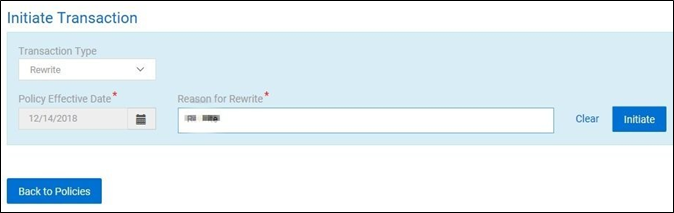
Select Rewrite from Initiate Transaction in the Policy Activity page, and provide the Reason for Rewrite.
-
You can make all the desired changes. A new quote number will be generated.
-
You can view the new premium at the Pricing Info screen and bind the application through Submit. A new quote number and new policy number will be generated.
Important: A message will be displayed that the policy has been rewritten against the old and new policies in the Policies tab.