Getting Started with Quote Management System
Welcome to Quote Management System, a digital cloud-based solution for property and casualty insurers to engage their customers, distribution channels, and employees.
About Quote Management System
BizDynamics platform facilitates collaboration between Customers and Agents with digital and intuitive experience. It also helps Agents and Employees to collaborate with each other while working on real-time transactions.
It enables the insurers to have better agent-customer experience, retain and acquire customers through better engagement, effectively manage agent workforce, accelerate digital journey with out-of-the-box apps, leverage investments made in core systems through API libraries, and have uniform experience across multiple touch points.
The following personas use Quote Management System:
-
Agents who assist customers in finding the right insurance product
-
Employees who can accept or reject any quotes referred by the system
-
Customers interested in purchasing an insurance product
Agents, Employees, Customers can login to the application, and the application displays relevant information based on the type of users.
The application allows these users to collaborate through business transactions and notifications.
Note: For more information on the digital engagement platform, refer Features.
Log In for the first time
If you are a registered user in BizDynamics Administration, you will receive an email containing your username and temporary password.
You can login to the application using the username and password that you received via email.
You can login to the application using the username and password that you received via email.
Forget Password
If you forget the password, click Forgot Password. A pop-up window appears through which you can retrieve the password by providing your registered email.
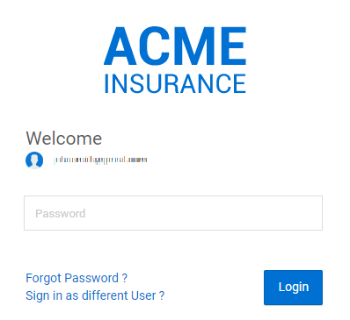
A temporary password will be sent to your registered email. You can login with that temporary password and navigate to the Change Password screen, where you can reset the password.
Once you reset the password, you will be navigated to the login screen.
Change Password
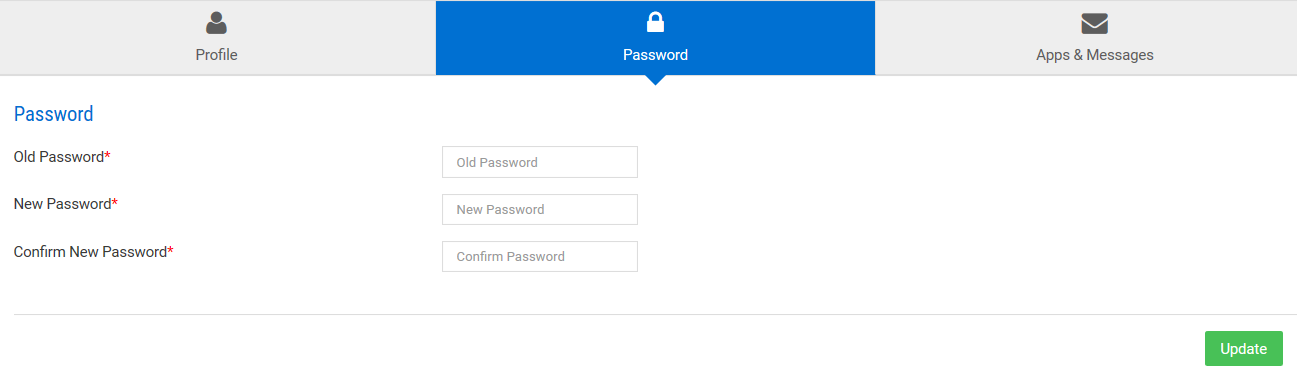
To change your password, click Settings  on the dashboard. You will be navigated to Profile and Preferences, where you can click on Password tab and provide your old password along with new password.